Digital advertising
How much Google Ads costs: spend, management fees and a realistic budget
How much Google Ads costs: what you pay Google, what an agency charges to manage it and what budget you need for it to pay off.


Indexing is the process by which Google adds web pages to its database (the index). Only indexed pages can appear in the search results. If your page is not indexed, it simply does not exist as far as Google is concerned.
It is important to separate two concepts that often get mixed up:
Google can crawl a page and still decide not to index it for various reasons: duplicate content, low quality, noindex instructions and so on. That is why understanding both processes is essential for diagnosing visibility problems.
The aim of any SEO strategy is to get the important pages of your site properly indexed and ranking for the relevant searches.
Before trying to index new pages, check whether your site is already in Google’s index and what state it is in. There are several ways to do that:
Type into Google: site:yourdomain.com. You will see every page of your domain that is indexed. If nothing appears, your site is not indexed or there is a serious problem.
Copy a page’s full URL and paste it into Google in quotation marks. If it appears, it is indexed. If not, that specific page is not in the index.
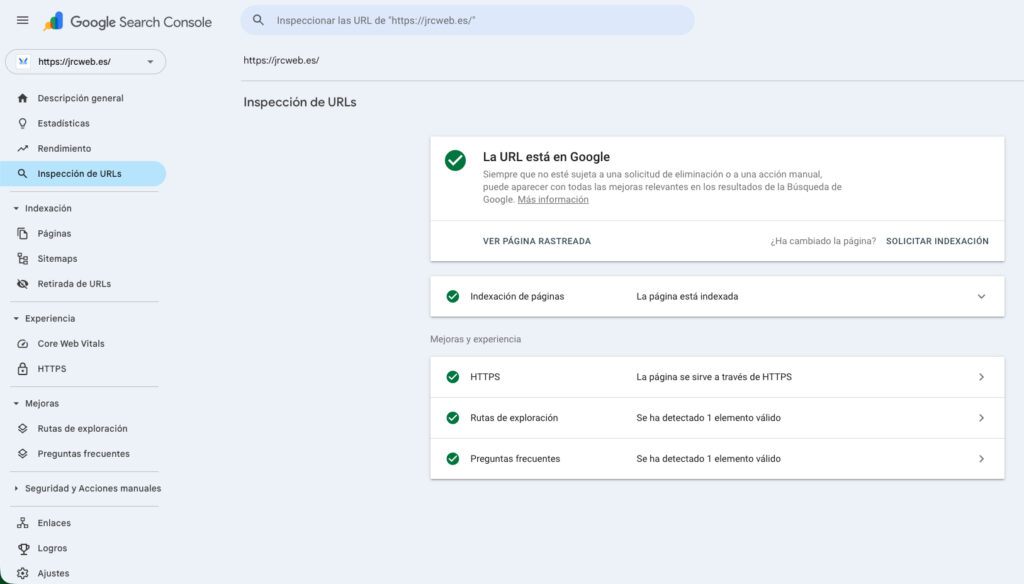
The most precise way. In Google Search Console, use the “URL Inspection” tool to see the exact state of any page: whether it is indexed, when it was last crawled and whether there are any problems.
In Search Console, the “Pages” report (formerly “Coverage”) gives you a summary of every URL: how many are indexed, how many have errors, which are excluded and why.
Google Search Console is Google’s official free tool for managing how your site appears in the search results. It is essential for any site owner.
Go to search.google.com/search-console and add your property (domain or URL). Google will ask you to verify ownership by one of these methods: an HTML file, a meta tag, a DNS record or Google Analytics.
Once verified, Google will start showing data about your site. The first data can take a few days to appear. Be patient.
Get familiar with the main sections: Performance (clicks and impressions), Pages (indexing status), Experience (Core Web Vitals) and Enhancements (structured data, AMP and so on).
Search Console is your control centre for understanding how Google sees your site and spotting problems before they hit your rankings.
An XML sitemap is a file listing all the important URLs on your site. Submitting it makes it easier for Google to discover and crawl every page, especially new ones or those with few internal links.
Most CMSs generate one automatically. In WordPress, plugins such as Yoast SEO, Rank Math or All in One SEO create the sitemap and keep it updated. It is usually at yourdomain.com/sitemap.xml or yourdomain.com/sitemap_index.xml.
Google will process the sitemap and show you how many URLs it discovered and how many it indexed. If there is a big gap between submitted and indexed URLs, check the Pages report to find out why.
When you need a specific page indexed quickly, you can request it manually in Google Search Console. This is useful for new content, important updates or pages that have gone a long time without being indexed.
If the page still does not appear after requesting indexing, there is probably a technical problem you need to solve first.
The robots.txt file controls which parts of your site search engine bots can crawl. A wrong setup can block important pages from being indexed.
Open yourdomain.com/robots.txt in a browser. You will see the instructions bots should follow. Look for lines such as “Disallow: /”, which blocks the whole site, or “Disallow: /folder/”, which blocks specific sections.
A basic robots.txt that allows full crawling:
User-agent: *
Allow: /
Sitemap: https://yourdomain.com/sitemap.xml
Remember: robots.txt controls crawling, not indexing. A page blocked in robots.txt can still appear in Google if it has external links, though with no visible content.
Proper indexing is the first step to appearing in Google. Without it, ranking is impossible. That is why it is essential to make sure all your important pages are properly indexed and reachable by search engines.
At JRC Web we help businesses solve indexing problems and improve their visibility in search. As an SEO agency in Barcelona, we run full technical audits to find and fix whatever is stopping your content appearing in Google.
If you need a new site optimised for SEO from the outset, our professional web design services include all the technical setup that makes indexing straightforward.
Is your site missing from Google or having indexing problems? Get in touch and we will analyse your case free of charge to identify what is going wrong.
Meta robots tags let you control indexing at individual page level. They are more precise than robots.txt because you decide page by page what Google should do.
To stop a page being indexed, add this in the <head>:
<meta name=”robots” content=”noindex, follow”>
An accidental noindex on important pages is one of the most common causes of indexing problems. Always check it when a page will not index.
There are several reasons Google may decide not to index a page even after crawling it. Identifying the cause is the first step to fixing it.
Use the “URL Inspection” tool in Search Console. It tells you exactly why a page is not indexed: “Crawled, currently not indexed”, “Discovered, currently not indexed”, “Excluded by noindex tag” and so on.
Internal links are fundamental to indexing. Google discovers new pages by following links from pages it already knows. A page with no internal links (an orphan page) is very hard to discover and index.
Tools such as Screaming Frog, Ahrefs or SEMrush can crawl your site and find pages that receive no internal links. Those pages are the priority for better linking.
Running a periodic SEO audit will help you spot internal linking problems and orphan pages before they affect your indexing.
If your site is built on WordPress, there are a few specific things that make indexing easier:
In WordPress, go to Settings → Reading and make sure the box “Discourage search engines from indexing this site” is NOT ticked. If it is, WordPress adds noindex to every page.
Install an SEO plugin such as Yoast SEO or Rank Math. These plugins:
Check which content types your sitemap includes. You normally want posts and pages, but not tags, author archives or content formats that add nothing.
There are plugins such as “Instant Indexing for Google” that automatically send new URLs to Google through the Indexing API. Useful for news sites or content that needs indexing fast.
Before setting up crawl restrictions, make sure you properly understand what the robots.txt file is and how it affects the way Google indexes your website.
It depends on several factors. High-authority sites can be indexed within hours. Established sites usually take between 1 and 7 days. New sites can take weeks or months. You can speed things up by submitting your sitemap and requesting indexing manually in Search Console.
Being indexed does not mean appearing in the top results. Indexing is the first step; Google then has to rank the page on relevance and quality. If it is indexed but not showing for your target searches, you need to work on on-page and off-page SEO.
You cannot force Google, but you can request indexing in Search Console. That signals Google to prioritise crawling that URL, though the final decision rests with the algorithm, based on content quality and other factors.
Add the noindex meta tag to those pages. Then, in Search Console, use ‘URL Inspection’ and request that Google crawls them again. Google will process the noindex tag and remove the pages from the index over the following days or weeks.
Not strictly, if your site has a good internal link structure. A sitemap does, however, make it easier for Google to discover all your pages, especially new ones or those with few links. It is recommended practice with no downsides.
Click to rate this post!
How useful did you find this content?
Click a star to rate it!
Average rating!0/ 5. Vote count0
No votes yet! Be the first to rate this post.
How much Google Ads costs: what you pay Google, what an agency charges to manage it and what budget you need for it to pay off.

Web design for freelancers in Barcelona: which pages you need, what it costs and how to get a professional, affordable website that wins clients.

What AI search optimisation (GEO) is and how to get ChatGPT, Gemini and Perplexity to recommend your company in Barcelona.