para que sirve google search console

Google Search Console: what it is and what it is for

Last reviewed: May 2026 Want to know how Google sees your website? Google Search Console is the free tool that gives you direct access to Google’s data about your site: which searches bring you visits, which pages are indexed, what errors it spots and how to improve your rankings. At our SEO agency Barcelona we use Search Console every day to improve our clients’ rankings. In this guide we explain what Google Search Console is for, how to set it up, which reports matter most and how to use it to improve your site’s SEO.

What you will learn in this guide

  • What Search Console is: Google’s tool for webmasters
  • How to set it up: verifying your property step by step
  • Key reports: Performance, Indexing, Core Web Vitals
  • Practical use: how to improve your SEO with the data
  • Troubleshooting: common errors and how to fix them

Contents

What is Google Search Console?

Google Search Console (formerly Google Webmaster Tools) is a free Google service that lets website owners monitor, maintain and troubleshoot how their site appears in search results.

It is the only way to see real Google data about your website: not estimates or third-party data, but information straight from the search engine.

What can you do with Search Console?

  • See which searches bring you traffic: the real keywords that surface your site
  • Check indexing: which pages Google has in its index
  • Spot errors: crawling, mobile and security problems…
  • Submit content: request indexing of new pages
  • Analyse links: which websites link to yours
  • Measure Core Web Vitals: speed and UX performance

Is it mandatory?

It is not mandatory, but it is highly recommended. It is free and gives you information you cannot get any other way. Any serious SEO strategy starts by setting up Search Console.

How to set up Search Console step by step

Before seeing the data, you need to verify that you own the site. Google offers several methods:

Step 1: Sign in to Search Console

Go to search.google.com/search-console and sign in with your Google account.

Step 2: Add a property

You have two options:

  • Domain: covers every version (www, non-www, http, https). Requires DNS verification.
  • URL prefix: only the exact version you enter. More verification options.

Recommendation: use “Domain” if you have DNS access. It is more complete.

Step 3: Verify the property

Available verification methods:

  • DNS record: add a TXT record with your domain provider
  • HTML file: upload a file to the root of your site
  • HTML tag: add a meta tag in your site’s head
  • Google Analytics: if you already have GA set up
  • Google Tag Manager: if you already use GTM

Step 4: Wait for the data

Search Console starts collecting data from verification onwards. Historical data can take a few days to appear in full.

Performance report: clicks, impressions and CTR

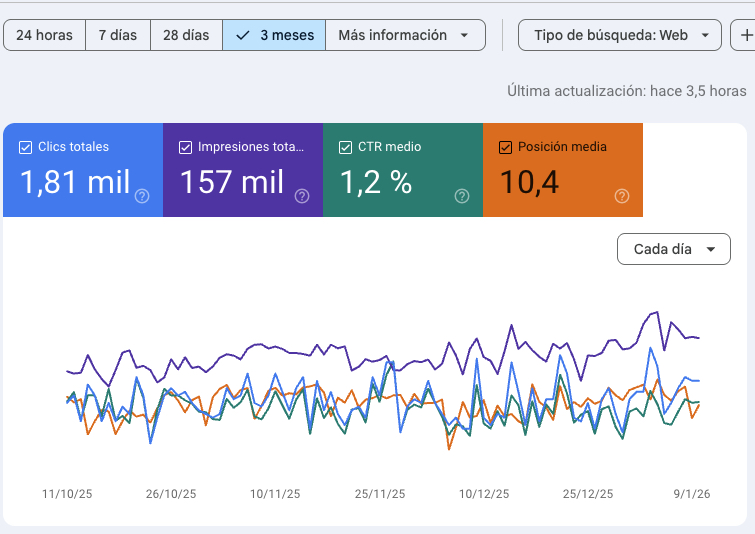
The Performance report is the most used. It shows how your site appears in Google search results.

Main metrics

  • Clicks: the number of times users clicked your result
  • Impressions: the number of times your site appeared in results (even without a click)
  • CTR: the percentage of clicks over impressions (clicks ÷ impressions × 100)
  • Average position: your average position in search results

Analysis dimensions

  • Queries: which keywords surface your site
  • Pages: which URLs receive traffic
  • Countries: where searches come from
  • Devices: mobile, desktop, tablet
  • Search appearance: rich results, AMP and so on

How to use this data

Look for keywords with many impressions but few clicks: you have visibility but you are not convincing anyone. Improve the title and meta description to raise the CTR. Also identify pages in positions 5-15: with some optimisation they can move up to the top 3.

Google Search Console para que sirve

Pages report: indexing status

The Pages (formerly “Coverage”) shows the indexing status of your site: which pages Google has in its index and which it does not.

Page statuses

  • ✅ Indexed: the page is in Google’s index
  • ⚠️ Not indexed: Google knows about the page but has not indexed it
  • ❌ Error: problems preventing indexing

Common reasons for not being indexed

  • Crawled, not indexed: Google saw it but decided not to index it (thin or duplicate content…)
  • Discovered, not crawled: Google knows about it but has not visited it yet
  • Excluded by noindex: you have a noindex tag
  • Blocked by robots.txt: your robots.txt blocks it
  • Duplicate page: Google chose another URL as canonical
  • Soft 404: the page exists but looks empty or like an error

What to do

Review the important pages that are not indexed. If they should be, fix the problem (remove noindex, improve the content, fix robots.txt) and request indexing.

How to request indexing of URLs

You can ask Google to crawl and index specific pages as a priority:

When to request indexing

  • You have published important new content
  • You have significantly updated a page
  • You have fixed a problem that was preventing indexing
  • An important page is not showing up on Google

How to do it

  1. Go to Search Console
  2. Use the search bar at the top (URL Inspection)
  3. Enter the URL you want indexed
  4. Click “Request indexing”

Limits and things to keep in mind

  • There is a daily limit on requests (not officially published)
  • A request does not guarantee immediate indexing
  • Do not overuse it: use it for important pages, not for every small change
  • Google crawls active sites frequently without you having to request it

For large sites or frequent updates, it is better to keep a good, up-to-date sitemap. More in our guide on how to index your site on Google.

Core Web Vitals in Search Console

Search Console includes Page Experience reports that measure Core Web Vitals:

Metrics evaluated

  • LCP (Largest Contentful Paint): how fast the main content loads
  • INP (Interaction to Next Paint): responsiveness to interactions
  • CLS (Cumulative Layout Shift): visual stability of the page

URL classification

  • 🟢 Good: meets the recommended thresholds
  • 🟡 Needs improvement: close to the threshold but not meeting it
  • 🔴 Poor: well below what is recommended

Mobile vs desktop data

Search Console separates the reports by device. It is common for mobile to score worse because connections tend to be slower and devices less powerful.

How to improve

Click on the issues to see which URLs are affected. Then use PageSpeed Insights for detailed diagnostics of each page and specific recommendations.

Links report: backlinks and internal links

Google Search Console is essential for any SEO strategy. It is free, gives you data straight from Google and lets you find and fix problems before they hurt your rankings.

At JRC Web we use Search Console as a core tool to monitor and optimise our clients’ SEO. Real Google data lets us make decisions based on evidence, not assumptions.

As an SEO agency, we set up and analyse Search Console for every project, identifying opportunities and technical problems that could be holding back your rankings.

Want us to review your Search Console? Get in touch and we will give you an initial assessment with no commitment.

Manual actions and security issues

The Links shows which websites link to yours and how your internal linking looks:

External links

  • Most linked pages: which URLs on your site get the most backlinks
  • Top linking sites: which domains link to you most
  • Anchor text: what anchor text they use to link to you

Internal links

  • Most internally linked pages: which URLs get the most links from your own site

How to use this data

Backlinks are an important link building factor. Analyse:

  • Do your important pages receive links?
  • Are the sites linking to you good quality?
  • Is the anchor text natural or does it look spammy?
  • Does your internal linking distribute authority well?

If you spot toxic links (from spam sites), you can use Google’s disavow tool, although only in extreme cases.

Search Console vs Google Analytics

Search Console alerts you when it finds serious problems on your site:

Manual actions

Penalties applied by Google’s spam team when they find guideline violations:

  • Spam or automatically generated content
  • Artificial links (bought links or link schemes)
  • Cloaking (showing different content to Google and to users)
  • Hacked content

If you have a manual action, you will see instructions to fix it and you can submit a reconsideration request.

Security issues

Google warns you if it detects:

  • Malware on your site
  • Phishing pages
  • Hacked content
  • Harmful downloads

What to do

If you get an alert, act immediately. Security problems can get your site removed from results until they are resolved.

Advanced Search Console features

Both tools are free and complementary, but they measure different things:

Google Search Console

  • Google search data (impressions, clicks, positions)
  • Indexing and crawling status
  • Technical problems on the site
  • Only organic Google search traffic

Google Analytics

  • All traffic (organic, direct, social, referral, paid…)
  • User behaviour on the site
  • Conversions and goals
  • Demographic and audience data

Which one should you use?

Use both. Search Console tells you how people find you on Google. Analytics tells you what they do once they arrive. You can connect them to see combined data.

How to connect them

In Google Analytics 4, go to Admin → Product links → Search Console links and follow the steps to connect both properties.

Good practice

Beyond the basic reports, Search Console offers advanced features:

URL Inspection

Analyse any URL on your site in detail:

  • Is it indexed?
  • When was it last crawled?
  • Does it have a canonical?
  • Is it mobile friendly?
  • A preview of how Google sees it

Removals

Request temporary removal of URLs from search results. Useful for sensitive content published by mistake.

Change of address

Tell Google if you are migrating your site to a new domain, to make the transition easier.

User settings

Add users with different access levels (owner, full user, restricted user) for teams or agencies.

Search Console API

For advanced analysis, you can access the data through the API and build custom dashboards or integrations with other tools.

Frequently asked questions about Search Console

Yes, it is completely free. All you need is a Google account and to verify that you own the website. There are no paid tiers and no premium features.
Data starts to appear shortly after you verify ownership, but it can take a few days to show in full. Performance data runs 2-3 days behind the present moment.
Not directly. Search Console is a diagnostic tool; it does not change your rankings. That said, spotting and fixing errors thanks to Search Console can certainly improve your SEO indirectly.
No. Search Console requires you to verify ownership of a website. If you do not have a site of your own, you cannot use the tool. It is designed for site owners and administrators.
The owner has full control: they can add and remove users, see all the data and carry out every action. Users can access the data but cannot manage the property or add other users. Handy for giving access to agencies or collaborators.

Click to rate this post!

How useful did you find this content?

Click a star to rate it!

Average rating!0/ 5. Vote count0

No votes yet! Be the first to rate this post.

More News